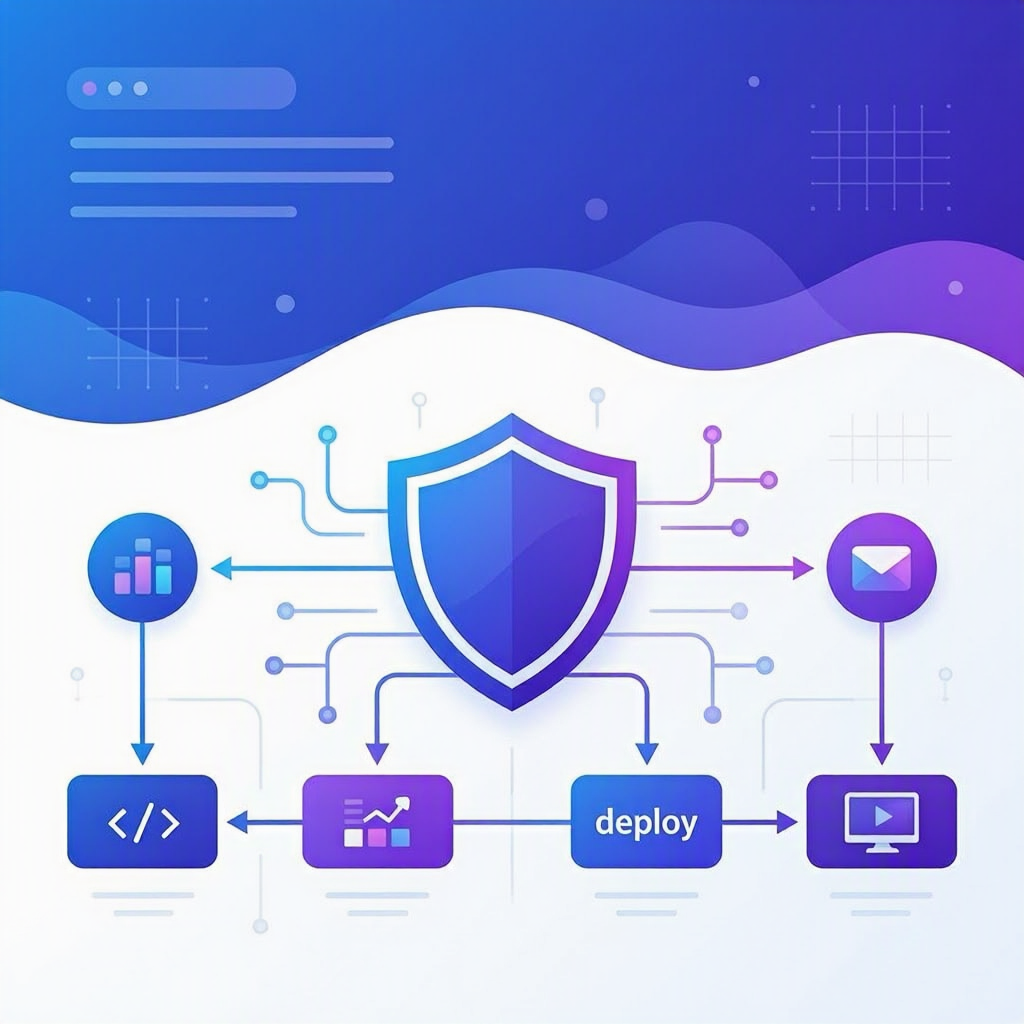
Government development teams face a growing mandate: ship software fast while meeting ever-tightening security requirements like NIST 800-53, StateRAMP, and executive orders on cybersecurity. Static application security testing (SAST) is no longer optional - but bolting on third-party scanning tools adds friction, cost, and complexity that slows teams down.
GitHub Advanced Security for Azure DevOps (GHAzDO) solves this by embedding CodeQL-powered code scanning, dependency scanning, and secret scanning directly into Azure Repos and Azure Pipelines. The standout feature for teams managing dozens or hundreds of repositories is default setup: a one-click configuration that enables CodeQL scanning across your entire organization without writing a single pipeline definition.
This post walks through enabling organization-wide code scanning, configuring default setup options, setting up PR-blocking status checks, triaging alerts at scale using Security Overview, and automating alert management with the Advanced Security REST API.
What is CodeQL Default Setup?
Default setup is the fastest path to code scanning. When you enable it, Azure DevOps automatically:
- Detects the CodeQL-supported languages in each repository (C#, C/C++, Go, Java/Kotlin, JavaScript/TypeScript, Python, Ruby, Swift)
- Creates a managed scanning configuration behind the scenes with no pipeline YAML required
- Runs scans on a configurable weekly schedule against the default branch
- Auto-updates language detection if your codebase evolves
For most government repositories - especially those using interpreted languages like Python and JavaScript, or managed languages like C# - default setup provides comprehensive coverage with zero pipeline authoring.
Default setup vs. advanced setup at a glance:
| Capability | Default Setup | Advanced Setup |
|---|---|---|
| Configuration | Automatic, no pipeline changes | Manual YAML pipeline tasks |
| Language detection | Auto-detected per repo | You specify languages |
| Branch coverage | Default branch only | Any branch triggering the pipeline |
| Build customization | Uses none build mode | Full control over build steps |
| Best for | Quick enablement, standard scanning | Multi-branch, custom build, compiled languages needing specific build steps |
Step 1: Enable Advanced Security Organization-Wide
Rather than enabling scanning repository by repository, Project Collection Administrators can light up Advanced Security across every repository in the organization with a single action.
- Navigate to Organization Settings > Repositories
- Click Enable all - you will see an estimate of active committers (this determines billing)
- Toggle Code Security (which includes CodeQL scanning and dependency scanning)
- Toggle Secret Protection (for secret scanning and push protection)
- Click Begin billing to activate across all existing repositories
- Optionally toggle Automatically enable Advanced Security for new projects so future projects inherit the configuration
Billing is based on active committers - any developer who pushed code in the last 90 days to a repository with Advanced Security enabled. Committers are deduplicated across your Azure subscription, so a developer contributing to five repositories only counts once.
Tip: You can also enable at the project level under Project Settings > Repos > Settings tab if you want a phased rollout across projects.
Step 2: Enable CodeQL Default Setup
Once Advanced Security is enabled, turn on default setup for code scanning:
- In Organization Settings > Repositories, expand the CodeQL default setup configurable options dropdown
- Enable the default setup checkbox for your organization
- Configure the Agent pool: choose between Azure Pipelines (Microsoft-hosted), a self-hosted agent pool, or Managed DevOps Pools
- Configure the Scan schedule: select which day of the week scans run
For individual repositories, you can also toggle default setup from Project Settings > Repos > Repositories > select your repo > enable the Run CodeQL analysis with default setup checkbox.
When to Choose Advanced Setup Instead
Default setup covers the majority of scenarios, but government teams should consider advanced setup when:
- Compiled languages need specific build steps (e.g., a .NET application requiring
dotnet buildwith particular SDK targets) - You need multi-branch scanning (e.g., scanning both
mainandrelease/*branches) - Air-gapped or restricted networks require self-hosted agents with manually installed CodeQL bundles
- You want scanning integrated into existing CI/CD pipelines rather than running on a separate schedule
Here is a starter advanced setup pipeline for a C# and JavaScript project:
| |
For self-hosted agents, set enableAutomaticCodeQLInstall: true in the init task or manually install the CodeQL bundle to the agent tool cache using the setup scripts from Microsoft’s GHAzDO-Resources repository.
Step 3: Block Vulnerable Code at the Pull Request
Scanning is only half the equation - you need to prevent vulnerabilities from reaching production. GHAzDO provides two PR status checks you can configure as branch policies:
AdvancedSecurity/AllHighAndCritical- blocks the PR if any critical or high severity alerts exist across the entire repositoryAdvancedSecurity/NewHighAndCritical- blocks the PR only if the changes in the PR introduce new critical or high severity vulnerabilities
To configure:
- Go to Project Settings > Repos > Policies > select your protected branch
- Add a Build validation policy with your Advanced Security pipeline (required for status checks to function)
- Under Status checks, click + to add a new policy
- Enter AdvancedSecurity for the Genre and NewHighAndCritical for the Name
- Set the Policy requirement to Required
For government teams, the NewHighAndCritical check is usually the right starting point. It prevents the introduction of new vulnerabilities without requiring teams to fix every pre-existing issue before they can merge any code - a practical approach when adopting security scanning on legacy codebases.
CodeQL also generates PR annotations directly in the pull request Overview tab, showing developers the exact lines of code that triggered a finding along with remediation guidance.
Step 4: Triage Alerts at Scale with Security Overview
The Security Overview dashboard (Organization Settings > Security Overview) provides a single pane of glass across all projects and repositories in your organization.
Risk Tab
The Risk tab shows the distribution of alerts by severity across every Advanced Security-enabled repository. You can:
- Sort by Open, New, Dismissed, or Fixed columns
- Filter by project, tool (code scanning, dependency scanning, secret scanning), and time range
- Share filtered views via URL parameters
This view surfaces the repositories with the highest concentration of critical and high severity findings, letting security leads prioritize remediation efforts across the entire portfolio.
Coverage Tab
The Coverage tab shows every repository in the organization, regardless of enablement status, with a breakdown of which scanning tools are active. This is invaluable for compliance reporting - you can quickly identify repositories that have not yet been onboarded to scanning.
Per-Repository Alert Triage
Within each repository, the Advanced Security tab under Repos provides detailed alert management:
- Filter alerts by branch, state, pipeline, rule type, and severity
- View alert details including the affected code location, vulnerability description, remediation guidance, and CVSS-based severity
- Dismiss alerts as Risk accepted or False positive with an optional comment
- Dismissals apply across all branches containing the same vulnerability
Step 5: Automate Alert Management with the REST API
For organizations managing hundreds of repositories, the Advanced Security REST API enables programmatic alert triage and reporting. Here is a PowerShell example that retrieves all critical and high severity code scanning alerts across a repository:
| |
Key API filter parameters for triage automation:
criteria.alertType- filter tocode,dependency, orsecretcriteria.severities- filter bycritical,high,medium,lowcriteria.states- filter byactive,dismissed,fixedcriteria.isTriaged- return only alerts that have been triagedcriteria.modifiedSince- return alerts modified after a specific date (useful for delta reporting)
The API uses Microsoft Entra ID tokens (recommended) or Personal Access Tokens with the vso.advsec scope for authentication. For enterprise automation, Entra ID tokens provide OAuth 2.0 compliance, conditional access support, and better audit logging.
Why This Matters for Government
Government agencies face unique pressures that make GHAzDO’s integrated approach particularly valuable:
Compliance acceleration: Federal directives like Executive Order 14028 and frameworks like NIST 800-53 SA-11 require static code analysis. CodeQL default setup lets agencies demonstrate compliance coverage across all repositories from a single dashboard without building custom scanning infrastructure.
Shift-left without slowing down: PR status checks and annotations catch vulnerabilities before they reach production, reducing the cost and risk of post-deployment remediation. The
NewHighAndCriticalstatus check is especially practical for agencies adopting scanning on existing legacy codebases.Centralized visibility for distributed teams: Many government organizations have development spread across multiple departments and contractors. Security Overview provides agency CISOs and IT directors with a consolidated risk view without requiring access to individual repositories.
Native platform integration: Because GHAzDO is built into Azure DevOps, there are no additional tools to procure, no SARIF file plumbing to maintain, and no separate vendor security reviews. Results flow directly into the developer workflow where code is authored and reviewed.
Azure subscription billing: Licensing ties to your existing Azure subscription, which simplifies procurement through existing Microsoft enterprise agreements common in state and local government.
Microsoft Defender for Cloud integration: GHAzDO findings can surface in Defender for Cloud, giving security operations teams context-driven remediation guidance alongside infrastructure and workload security findings.
Getting Started Checklist
- ✅ Ensure your organization uses Azure DevOps Services (GHAzDO is not available for Azure DevOps Server on-premises)
- ✅ Verify you have Project Collection Administrator permissions or the Advanced Security: manage settings permission
- ✅ Enable Code Security and Secret Protection at the organization level
- ✅ Turn on CodeQL default setup and configure your preferred agent pool and scan schedule
- ✅ Configure PR status checks (
NewHighAndCritical) on your protected branches - ✅ Review Security Overview weekly to monitor risk trends and coverage gaps
- ✅ For compiled language repos needing custom builds, set up advanced setup pipelines
- ✅ Add self-hosted agent allowlist URLs if applicable:
advsec.dev.azure.com,governance.dev.azure.com